Solving the n8n Google Sheets Credential Headache
What's The Problem?
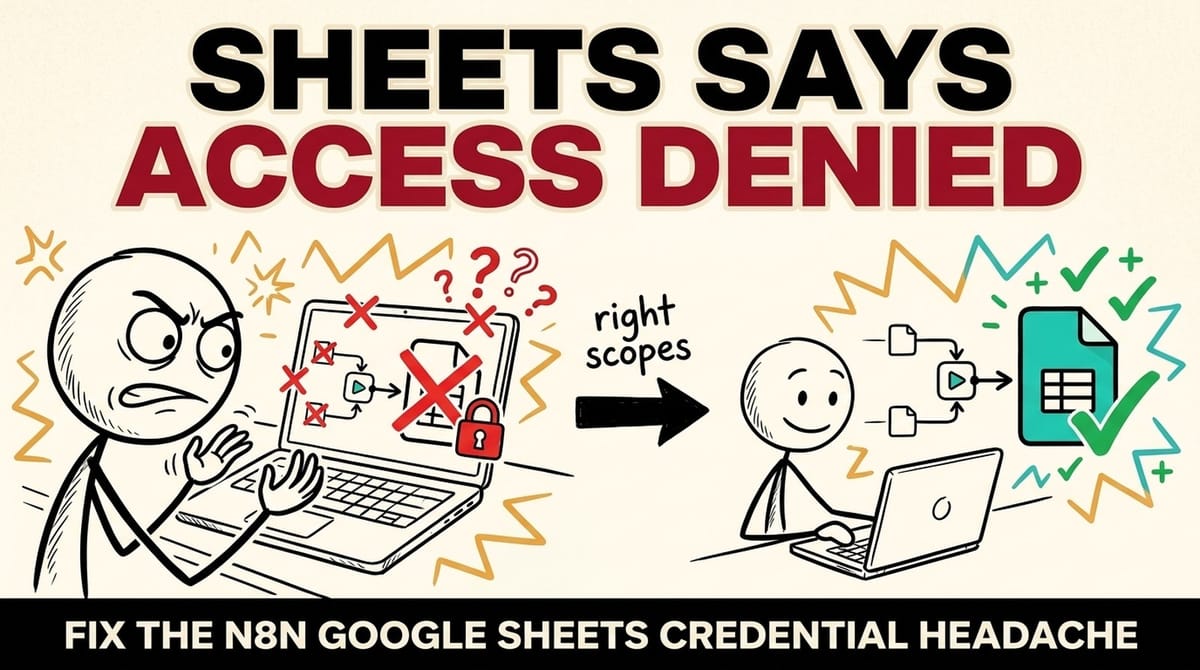
I hit a wall the other day. I was spinning up a new n8n workflow for a project, and it was time to connect to Google Sheets, a task I've done a hundred times. I grabbed my OAuth Client ID and Secret from the Google Cloud Console, plugged them in, and... nothing. The authentication would fail every single time.
After trying to reconnect, remaking my credentials, and checking my Google Cloud project settings, I was about to lose my mind. Everything looked right, but it was clearly broken. If you're here, you've probably felt that same frustration. It turns out the fix is simple, but it's buried in a recent n8n update that isn't widely documented.
The Fix: New OAuth2 Fields
It turns out that with newer versions of n8n, the Google Sheets credential setup now requires two additional fields that weren't there before. Your old credentials might still work, but if you're setting up a new connection, you'll be met with this new screen without much explanation.
Thanks to a solution from the user sfortus on the n8n community forums, the missing pieces are now clear. You just need to provide the Authorization URL and the Access Token URL.
Here are the exact settings you need to get your Google Sheets connection working again.
- Grant Type:
Authorization Code - Authorization URL:
https://accounts.google.com/o/oauth2/auth - Access Token URL:
https://oauth2.googleapis.com/token
Step-by-Step Guide
To make it crystal clear, here’s exactly what you need to do:
- In your n8n instance, navigate to the Credentials section and click Add credential.
- Search for and select Google Sheets.
- You'll see the familiar fields for Client ID and Client Secret. Go ahead and paste your values in from the Google Cloud Console.
- Now, you'll see the new fields. Copy and paste the following URLs into their respective boxes:
- In the Authorization URL field, enter:
https://accounts.google.com/o/oauth2/auth - In the Access Token URL field, enter:
https://oauth2.googleapis.com/token
- In the Authorization URL field, enter:
- Ensure the Grant Type is set to
Authorization Code. - Click Save, and then sign in with your Google account to authorize the connection.
That's it. Your connection should now authenticate successfully. This small, undocumented change is all it takes to fix the issue. Hopefully, this quick guide saves you the hours of frustration I went through. Happy automating!
Get the next one by email
One practical fix every two weeks for owners of established B2B companies. Websites, conversions and operations, written plainly.

Peter Krzyzek
eter Krzyzek is co-founder and CTO of Chykalophia, the Chicago agency that builds strategy-led websites for established B2B companies, and co-author of Made to Sell.


Comments