How to delete all hidden files from macOS removable media (SD Cards / USB keys / etc)
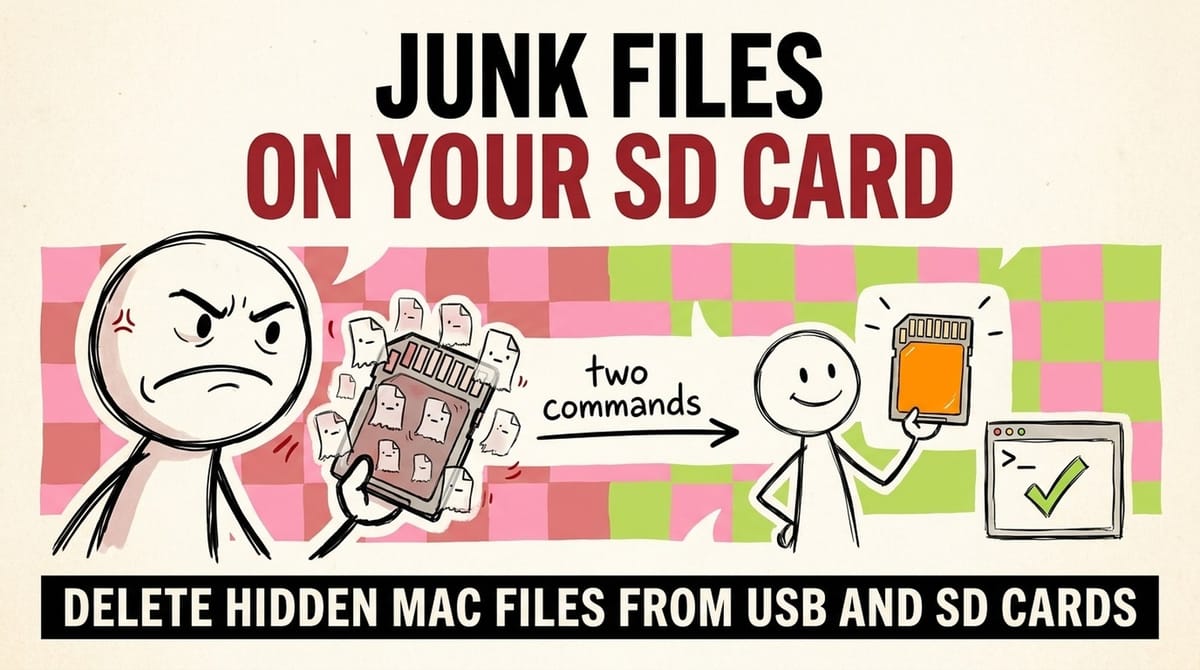
Your_Volume_NAMEHERE and double-check the path, because the delete can't be undone.1. Turn off Spotlight indexing on the drive: sudo mdutil -X /Volumes/Your_Volume_NAMEHERE2. Delete every hidden file on it: find "/Volumes/Your_Volume_NAMEHERE" -type f -name '.*' -deleteTo see hidden files in Finder, press Command, Shift and the period key.Why does macOS create so many hidden files, no idea, but I do know it is really annoying on external media and drives. Recently, I was trying to get something on an SD card and I needed all the hidden files (the files with a period in-front, example: ._fileNameHere.md) deleted.
I could do it by hand both in the console or in Finder (yes, you can view hidden files in finder, see bottom of post). But, it would not let me delete a ._Spotlight-V100 file/folder/thing/whatever. Even with root (sudo).
Turn off disk / device indexing
The _.Spotlightv100 folder/file is used by and for macOS's Spotlight search and indexing. It is useful to speed up searches and thus find things. But it is annoying to have when you (a) don't need it and (b) aren't concerned about indexing on that particular device.
Yes, you can add a .metadata_never_index hidden file to the device, but that defeats the whole requirements of “do not have any hidden files”. Thus: let's turn off indexing.
Go into the console/terminal and use the following (root) command:
> sudo mdutil -X /Volumes/Your_Volume_NAMEHERE
Of course, change the path to whatever your device path is. If your SD card, USB key, or external drive is mounted, then you'll find it by its NAME in the /Volumes folder where the mounted volumes are (hence the name).
Delete all hidden files with one command
The following command will delete ALL hidden files within the selected directory and its subdirectories. This is done on purpose so that it recursively deletes 100% of the stuff we do not want in all folders in all places within the place we want it to.
> find "/Volumes/Your_Volume_NAMEHERE" -type f -name '.*' -delete
That's it. Done. Indexing turned off, hidden files deleted.
Showing hidden files in Finder
There are 3 (three) ways to hide or show hidden files.
Easiest method to show hidden files in Finder
Open Finder and pick any place to browse. Doesn't matter where. Your Downloads folder is a good enought spot as an example.
Then on your keyboard press: Command Shift . That is the (left) command key, left shift key, and the period key.
Another easy way, but more clicks
Use a third-party app. There are a few, though I am unable to recommend any as I have not used them, but they do exist if you search for them.
Nerdy Command Line Way To Hide / Show Hidden Files
To SHOW all files, including hidden files (you'll see in a sec why I said 'show all files' specifically):
> defaults write com.apple.finder AppleShowAllFiles true
If you want to hide them again:
> defaults write com.apple.finder AppleShowAllFiles false
After either-or command, you MUST restart Finder:
> killall Finder
If you found this useful, leave a command and share some additional tips. 😸
Get the next one by email
One practical fix every two weeks for owners of established B2B companies. Websites, conversions and operations, written plainly.

Peter Krzyzek
eter Krzyzek is co-founder and CTO of Chykalophia, the Chicago agency that builds strategy-led websites for established B2B companies, and co-author of Made to Sell.



Comments